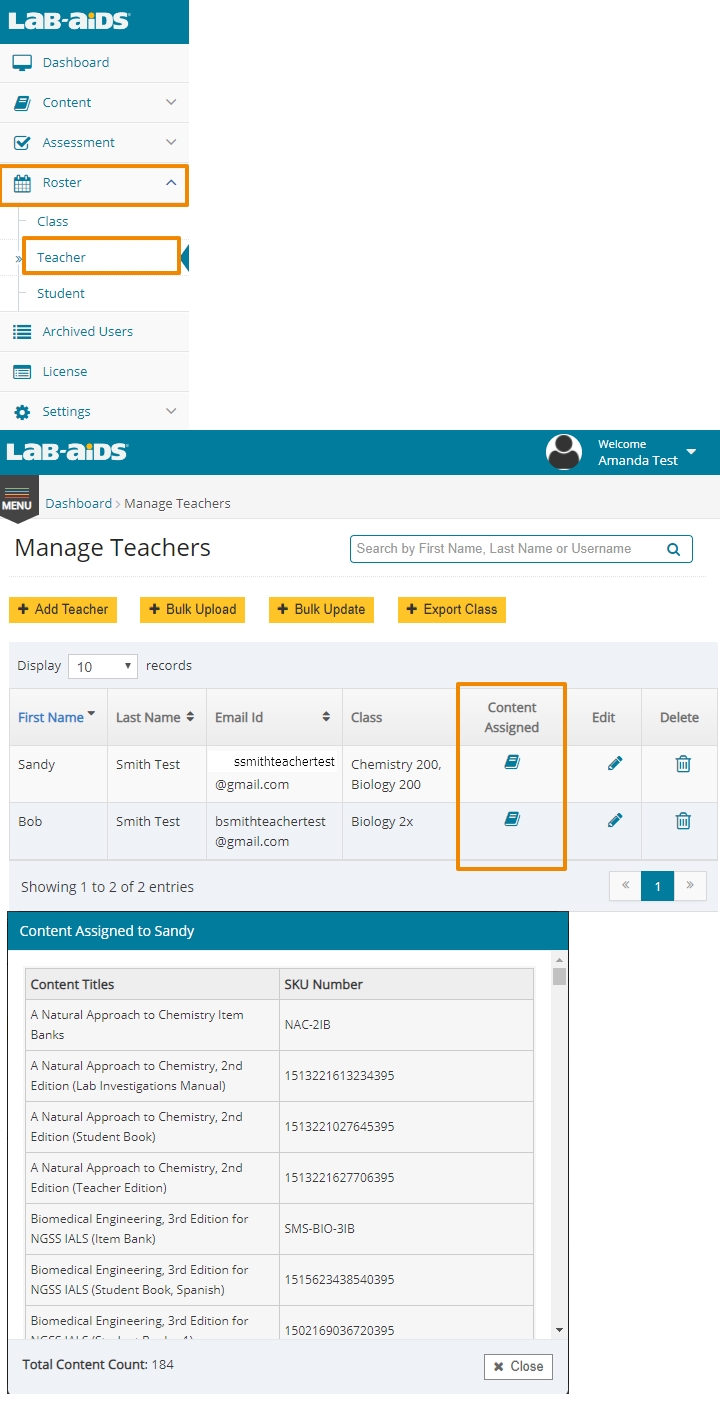
*Before assigning licenses to teachers, you'll need to make sure you have already added classes and rostered teachers.
**If you have been given a student PO and a teacher PO for the same content, you'll need to assign both POs to your teachers.
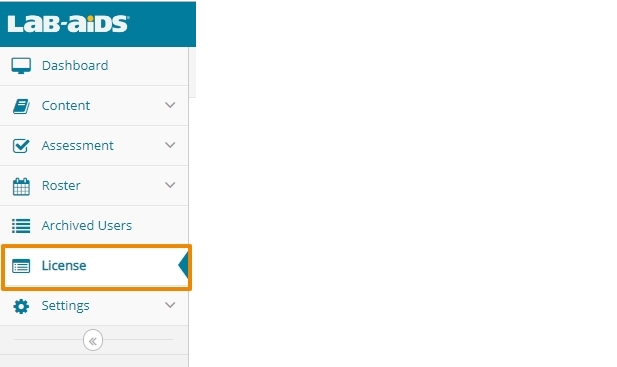
1) After logging into the admin account, select "License" from the left-hand side menu.
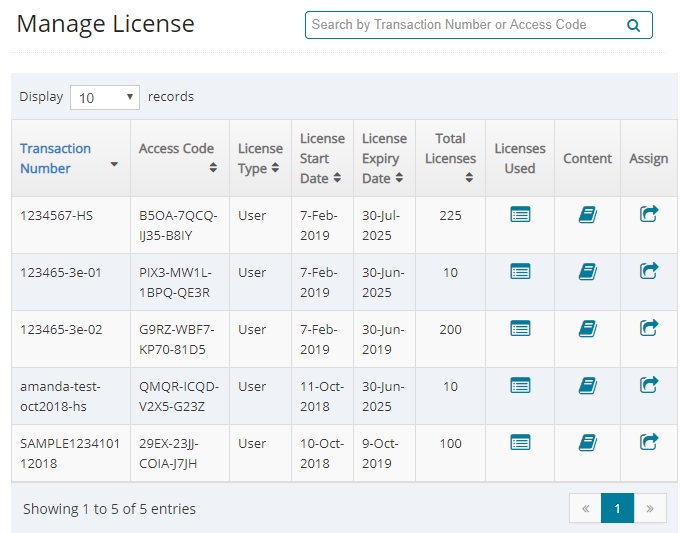
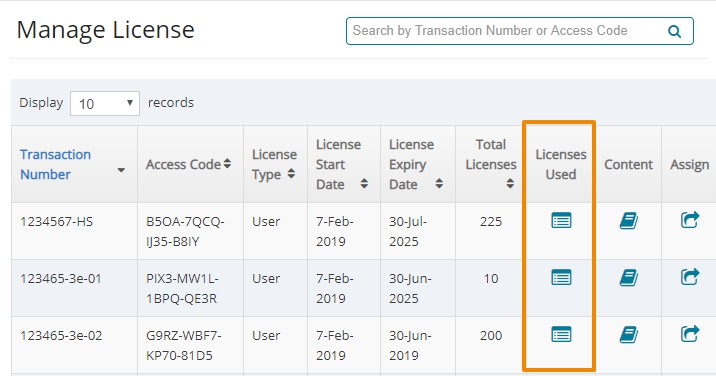
- You'll see a list of all POs/transactions (sets of licenses) assigned to your school, along with all related PO/transaction information.
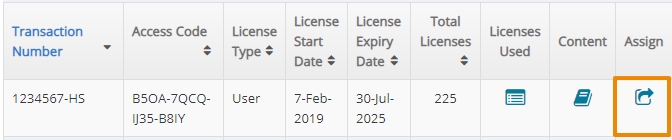
2) Click the "Assign" icon on the right side of each PO/transaction.
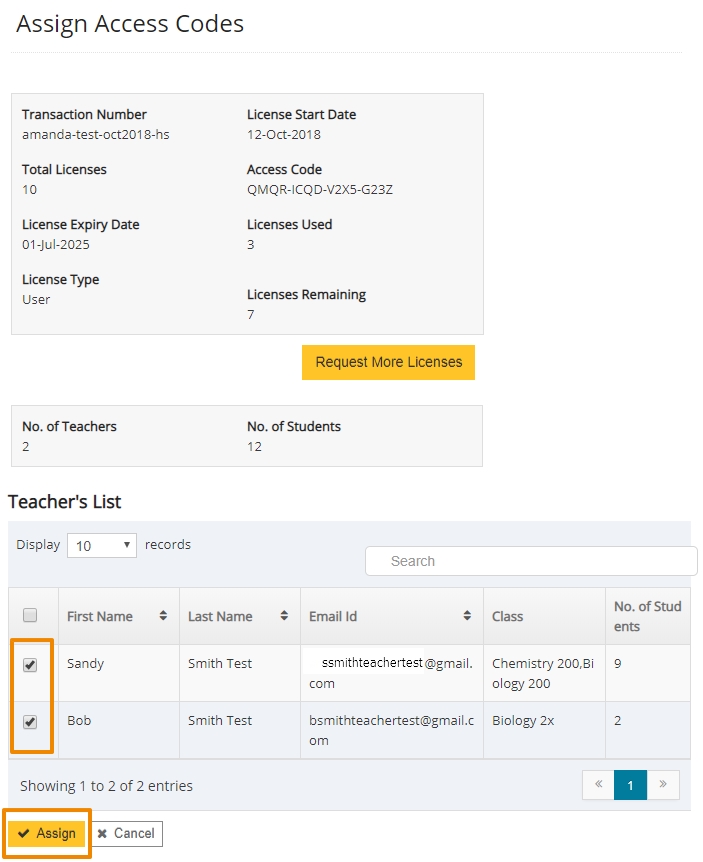
3) Select the teachers who need access to the PO/transaction, and then click "Assign". Your teachers will now have access to this content. Repeat for all POs/transactions.
If student licenses have been purchased and are on a separate PO/transaction, you will also need to assign that separate PO/transaction to teachers. Teachers will only be able to assign content to their students* if student licenses have been purchased and if all the necessary POs/transactions have been assigned to teachers.
Helpful Hints:
*1) If you have been given a student PO/transaction and a teacher PO/transaction for the same content, you'll need to assign both POs/transactions to your teachers before they can assign content to their students.
- When the expiration dates of student licenses and teacher licenses differ, we separate out student licenses and teacher licenses into separate POs/transactions. If this is the case, both POs/transactions need to be assigned to teachers so that teachers can then assign content to their students.
- The teacher PO/transaction usually ends in -01. The student PO/transaction usually ends in -02.
- If you only have one PO/transaction for both students and teachers, that is okay.
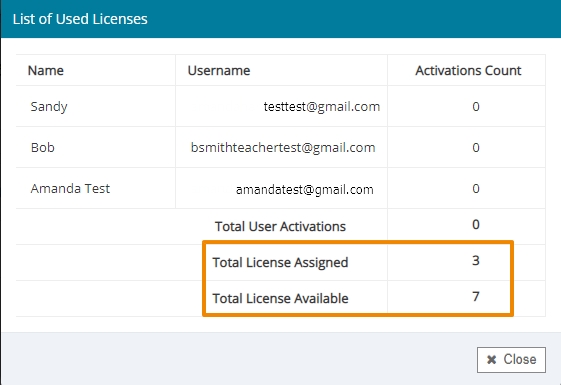
2) How to view licenses used vs. licenses available: From the "Manage License" screen, click on the icon for "Licenses Used" to view Licenses Assigned and Licenses Available.
3) You can check to see whether your teachers have been assigned content by going to Roster > Teacher > "Content Assigned".